> ## Documentation Index
> Fetch the complete documentation index at: https://docs.nylon.dev/llms.txt
> Use this file to discover all available pages before exploring further.
# Create your account
> Sign up for Nylon with a magic link, a password or Google, and join an organization you were invited to.
Nylon accounts are personal, and every account belongs to an **organization**. Connections, API keys, webhooks, logs and billing all belong to the organization, not to you — which is what lets a teammate pick up where you left off.
## Sign up
Go to [app.nylon.dev](https://app.nylon.dev). If you are not signed in, you land on the login card.
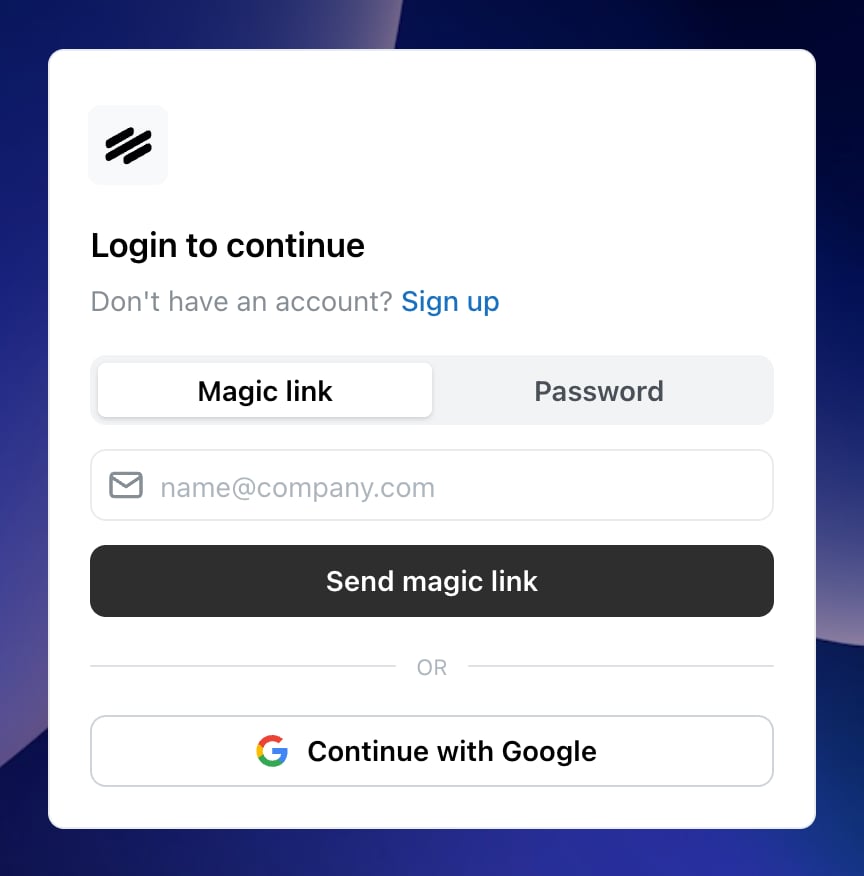 Select **Sign up** under the heading to switch from signing in to creating an account, then choose how you want to authenticate:
Enter your name and email and select **Send magic link**. Nylon emails you a link; open it and you are signed in. There is no password to choose or store.
Switch the segmented control from **Magic link** to **Password**, then enter your name, email and a password and select **Create account**.
Select **Continue with Google** and approve the sign-in. Nylon uses your Google name and email; nothing else is requested.
The method you used last is remembered and highlighted the next time you sign in, so you do not have to remember which one you picked.
## Joining an organization you were invited to
An invitation email contains a link that opens the same card with a blue **Joining an organization** notice above the form. Sign in or sign up from that link — not from a bookmark — so the invitation is attached to your account.
If you sign in from somewhere else first, ask whoever invited you to resend it, then open the link while signed in.
## Signing in later
The same card handles signing in. Enter your email and select **Send magic link**, or switch to **Password**, or use **Continue with Google**.
If you signed up with a password and have forgotten it, use the magic link method instead — it works on any account regardless of how it was created — then set a new password from **Settings → Account**.
## Switching on dark mode
Select your avatar in the top left of the sidebar and toggle **Dark mode**. The preference is yours, not your organization's.
## Related
What to do once you are in.
Bring the rest of your team into the same organization.
Select **Sign up** under the heading to switch from signing in to creating an account, then choose how you want to authenticate:
Enter your name and email and select **Send magic link**. Nylon emails you a link; open it and you are signed in. There is no password to choose or store.
Switch the segmented control from **Magic link** to **Password**, then enter your name, email and a password and select **Create account**.
Select **Continue with Google** and approve the sign-in. Nylon uses your Google name and email; nothing else is requested.
The method you used last is remembered and highlighted the next time you sign in, so you do not have to remember which one you picked.
## Joining an organization you were invited to
An invitation email contains a link that opens the same card with a blue **Joining an organization** notice above the form. Sign in or sign up from that link — not from a bookmark — so the invitation is attached to your account.
If you sign in from somewhere else first, ask whoever invited you to resend it, then open the link while signed in.
## Signing in later
The same card handles signing in. Enter your email and select **Send magic link**, or switch to **Password**, or use **Continue with Google**.
If you signed up with a password and have forgotten it, use the magic link method instead — it works on any account regardless of how it was created — then set a new password from **Settings → Account**.
## Switching on dark mode
Select your avatar in the top left of the sidebar and toggle **Dark mode**. The preference is yours, not your organization's.
## Related
What to do once you are in.
Bring the rest of your team into the same organization.